Hi Friends, if you like my blog please give your valuable comments it will help to improve my blog content and enthusiasm to write a lot in android World.

Friday, October 26, 2012

Custom Expandable List Example


Description:
This example shows how to create Expandable list using custom adapter.
Algorithm:
1.) Create a new project by File-> New -> Android Project name it CustomExpandableListExample.
2.) Run for output.
Steps:
1.) Create a project named CustomExpandableListExample and set the information as stated in the image.
Build Target: Android 2.3.3
Application Name: CustomExpandableListExample
Package Name: com.example
Activity Name: CustomExpandableListExampleActivity
Min SDK Version: 10
2.) Open CustomExpandableListExampleActivity.java file and write following code there:

package com.example;
import android.app.ExpandableListActivity;
import android.os.Bundle;
import android.view.ContextMenu;
import android.view.ContextMenu.ContextMenuInfo;
import android.view.Gravity;
import android.view.MenuItem;
import android.view.View;
import android.view.ViewGroup;
import android.widget.AbsListView;
import android.widget.BaseExpandableListAdapter;
import android.widget.ExpandableListAdapter;
import android.widget.ExpandableListView;
import android.widget.ExpandableListView.ExpandableListContextMenuInfo;
import android.widget.TextView;
import android.widget.Toast;
public class CustomExpandableListExampleActivity extends ExpandableListActivity {
    ExpandableListAdapter mAdapter;
    @Override
    public void onCreate(Bundle savedInstanceState) {
        super.onCreate(savedInstanceState);
        // Set up our adapter
        mAdapter = new MyExpandableListAdapter();
        setListAdapter(mAdapter);
        registerForContextMenu(getExpandableListView());
    }
    @Override
    public void onCreateContextMenu(ContextMenu menu, View v, ContextMenuInfo menuInfo) {
        menu.setHeaderTitle("Sample menu");
        menu.add(0, 0, 0, "Sample action");
    }
     
    @Override
    public boolean onContextItemSelected(MenuItem item) {
        ExpandableListContextMenuInfo info = (ExpandableListContextMenuInfo) item.getMenuInfo();
        String title = ((TextView) info.targetView).getText().toString();
         
        int type = ExpandableListView.getPackedPositionType(info.packedPosition);
        if (type == ExpandableListView.PACKED_POSITION_TYPE_CHILD) {
            int groupPos = ExpandableListView.getPackedPositionGroup(info.packedPosition);
            int childPos = ExpandableListView.getPackedPositionChild(info.packedPosition);
            Toast.makeText(this, title + ": Child " + childPos + " clicked in group " + groupPos,
                    Toast.LENGTH_SHORT).show();
            return true;
        } else if (type == ExpandableListView.PACKED_POSITION_TYPE_GROUP) {
            int groupPos = ExpandableListView.getPackedPositionGroup(info.packedPosition);
            Toast.makeText(this, title + ": Group " + groupPos + " clicked", Toast.LENGTH_SHORT).show();
            return true;
        }
         
        return false;
    }
    public class MyExpandableListAdapter extends BaseExpandableListAdapter {
        // Sample data set.  children[i] contains the children (String[]) for groups[i].
        private String[] groups = { "Names", "Designation", "Gender", "Company" };
        private String[][] children = {
                { "abc", "xyz", "ash", "anu" },
                { "SSE", "TJ", "PM", "SE" },
                { "Male", "Female" },
                { "yyyyyy", "xxxxx" }
        };
         
        public Object getChild(int groupPosition, int childPosition) {
            return children[groupPosition][childPosition];
        }
        public long getChildId(int groupPosition, int childPosition) {
            return childPosition;
        }
        public int getChildrenCount(int groupPosition) {
            return children[groupPosition].length;
        }
        public TextView getGenericView() {
            // Layout parameters for the ExpandableListView
            AbsListView.LayoutParams lp = new AbsListView.LayoutParams(
                    ViewGroup.LayoutParams.MATCH_PARENT, 64);
            TextView textView = new TextView(CustomExpandableListExampleActivity.this);
            textView.setLayoutParams(lp);
            // Center the text vertically
            textView.setGravity(Gravity.CENTER_VERTICAL | Gravity.LEFT);
            // Set the text starting position
            textView.setPadding(36, 0, 0, 0);
            return textView;
        }
         
        public View getChildView(int groupPosition, int childPosition, boolean isLastChild,
                View convertView, ViewGroup parent) {
            TextView textView = getGenericView();
            textView.setText(getChild(groupPosition, childPosition).toString());
            return textView;
        }
        public Object getGroup(int groupPosition) {
            return groups[groupPosition];
        }
        public int getGroupCount() {
            return groups.length;
        }
        public long getGroupId(int groupPosition) {
            return groupPosition;
        }
        public View getGroupView(int groupPosition, boolean isExpanded, View convertView,
                ViewGroup parent) {
            TextView textView = getGenericView();
            textView.setText(getGroup(groupPosition).toString());
            return textView;
        }
        public boolean isChildSelectable(int groupPosition, int childPosition) {
            return true;
        }
        public boolean hasStableIds() {
            return true;
        }
    }
}
3.) Compile and build the project.
Output

Friday, August 24, 2012

Conversion to Dalvik format failed with error 1" Error in ANDROID / Eclipse.


This is a normal error when you import some project into eclipse.
I will show you how to solve this

First try cleaning the project from project->Clean.
If this didn’t work, then try these


 Follow these steps
1. Go to Project » Properties » Java Build Path » Libraries and remove all except the “Android X.Y” (eg: Android 1.5). click OK.
2. Go to Project » Clean » Clean projects selected below » select your project and click OK.

Now your error may be gone.
Happy coding…

Friday, August 17, 2012

ImageSwitcher View in android


<?xml version="1.0" encoding="utf-8"?>
<RelativeLayout xmlns:android="http://schemas.android.com/apk/res/android"
    android:orientation="vertical"
    android:layout_width="fill_parent"
    android:layout_height="fill_parent"
    android:background="#ff000000"
    >

    <ImageSwitcher
        android:id="@+id/switcher1"
        android:layout_width="fill_parent"
        android:layout_height="fill_parent"                
        android:layout_alignParentLeft="true"
        android:layout_alignParentRight="true"
        android:layout_alignParentBottom="true"    
        />
    <Gallery
        android:id="@+id/gallery1"
        android:layout_width="fill_parent"
        android:layout_height="wrap_content"      
        />

</RelativeLayout>
Modify the DisplayViewsExample.java file as shown below:
package net.learn2develop.AndroidViews;

import android.app.Activity;
import android.content.Context;
import android.content.res.TypedArray;
import android.os.Bundle;
import android.view.View;
import android.view.ViewGroup;
import android.view.animation.AnimationUtils;
import android.widget.AdapterView;
import android.widget.BaseAdapter;
import android.widget.Gallery;
import android.widget.Gallery.LayoutParams;
import android.widget.ViewSwitcher.ViewFactory;
import android.widget.ImageSwitcher;
import android.widget.ImageView;
import android.widget.AdapterView.OnItemClickListener;

public class DisplayViewsExample extends Activity
implements ViewFactory
{  
    //---the images to display---
    Integer[] imageIDs = {
            R.drawable.pic1,
            R.drawable.pic2,
            R.drawable.pic3,
            R.drawable.pic4,
            R.drawable.pic5,
            R.drawable.pic6,
            R.drawable.pic7                  
    };

    private ImageSwitcher imageSwitcher;

    @Override  
    public void onCreate(Bundle savedInstanceState)
    {
        super.onCreate(savedInstanceState);
        setContentView(R.layout.displayview);

        imageSwitcher = (ImageSwitcher) findViewById(R.id.switcher1);
        imageSwitcher.setFactory(this);
        imageSwitcher.setInAnimation(AnimationUtils.loadAnimation(this,
                android.R.anim.fade_in));
        imageSwitcher.setOutAnimation(AnimationUtils.loadAnimation(this,
                android.R.anim.fade_out));

        Gallery gallery = (Gallery) findViewById(R.id.gallery1);
        gallery.setAdapter(new ImageAdapter(this));
        gallery.setOnItemClickListener(new OnItemClickListener()
        {
            public void onItemClick(AdapterView parent,
            View v, int position, long id)
            {              
             imageSwitcher.setImageResource(imageIDs[position]);
            }
        });
    }

    public View makeView()
    {
        ImageView imageView = new ImageView(this);
        imageView.setBackgroundColor(0xFF000000);
        imageView.setScaleType(ImageView.ScaleType.FIT_CENTER);
        imageView.setLayoutParams(new
                ImageSwitcher.LayoutParams(
                        LayoutParams.FILL_PARENT,
                        LayoutParams.FILL_PARENT));
        return imageView;
    }

    public class ImageAdapter extends BaseAdapter
    {
        private Context context;
        private int itemBackground;

        public ImageAdapter(Context c)
        {
            context = c;

            //---setting the style---              
            TypedArray a = obtainStyledAttributes(R.styleable.Gallery1);
            itemBackground = a.getResourceId(
                    R.styleable.Gallery1_android_galleryItemBackground, 0);
            a.recycle();                                                  
        }

        //---returns the number of images---
        public int getCount()
        {
            return imageIDs.length;
        }

        //---returns the ID of an item---
        public Object getItem(int position)
        {
            return position;
        }

        public long getItemId(int position)
        {
            return position;
        }

        //---returns an ImageView view---
        public View getView(int position, View convertView, ViewGroup parent)
        {
            ImageView imageView = new ImageView(context);
            imageView.setImageResource(imageIDs[position]);
            imageView.setScaleType(ImageView.ScaleType.FIT_XY);
            imageView.setLayoutParams(new Gallery.LayoutParams(150, 120));
            imageView.setBackgroundResource(itemBackground);
            return imageView;
        }
   }  
    }
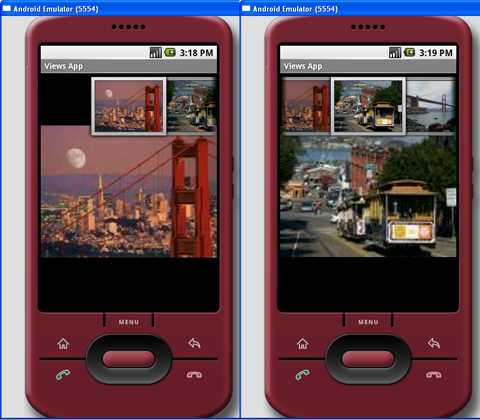
Observe that the DisplayViewsExample class now implements the ViewFactory class. The ViewFactory class creates the views in a ViewSwitcher view. When your class implements the ViewFactory class, you need to override the makeView() method, which creates a new View to be added in a ViewSwitcher.
Press F11 in Eclipse and observe the ImageSwitcher in action as shown in Figure 13.


Android DisplayMetrics


Get screen resolution using android.util.DisplayMetrics
android.util.DisplayMetrics is a structure describing general information about a display, such as its size, density, and font scaling.

To use android.util.DisplayMetrics to get resolution:

Create a dummy Android Application, add a TextView in main.xml to display the result.

<TextView
android:id="@+id/strScreenSize"
android:layout_width="fill_parent"
android:layout_height="wrap_content"
android:text=""
/>

Modify the .java file to read DisplayMetrics

package com.exercise.AndroidScreen;

import android.app.Activity;
import android.os.Bundle;
import android.util.DisplayMetrics;
import android.widget.TextView;

public class AndroidScreenActivity extends Activity {
 /** Called when the activity is first created. */
 @Override
 public void onCreate(Bundle savedInstanceState) {
     super.onCreate(savedInstanceState);
     setContentView(R.layout.main);

        DisplayMetrics dm = new DisplayMetrics();
        getWindowManager().getDefaultDisplay().getMetrics(dm);
        String str_ScreenSize = "The Android Screen is: "
                    + dm.widthPixels
                    + " x "
                    + dm.heightPixels;

        TextView mScreenSize = (TextView) findViewById(R.id.strScreenSize);
        mScreenSize.setText(str_ScreenSize);
 }
}


Thursday, August 16, 2012

Install Android APK Programmatically


To install app programmatically use following code, you'll need user permissions though.

Intent promptInstall = new Intent(Intent.ACTION_VIEW)
    .setData(Uri.parse("file:///path/to/your.apk"))
    .setType("application/vnd.android.package-archive";
startActivity(promptInstall);